LAN-only mode and self-hosted tools let you use Orca Slicer on a Bambu printer again.
Bambu Lab printers are more closed than they used to be
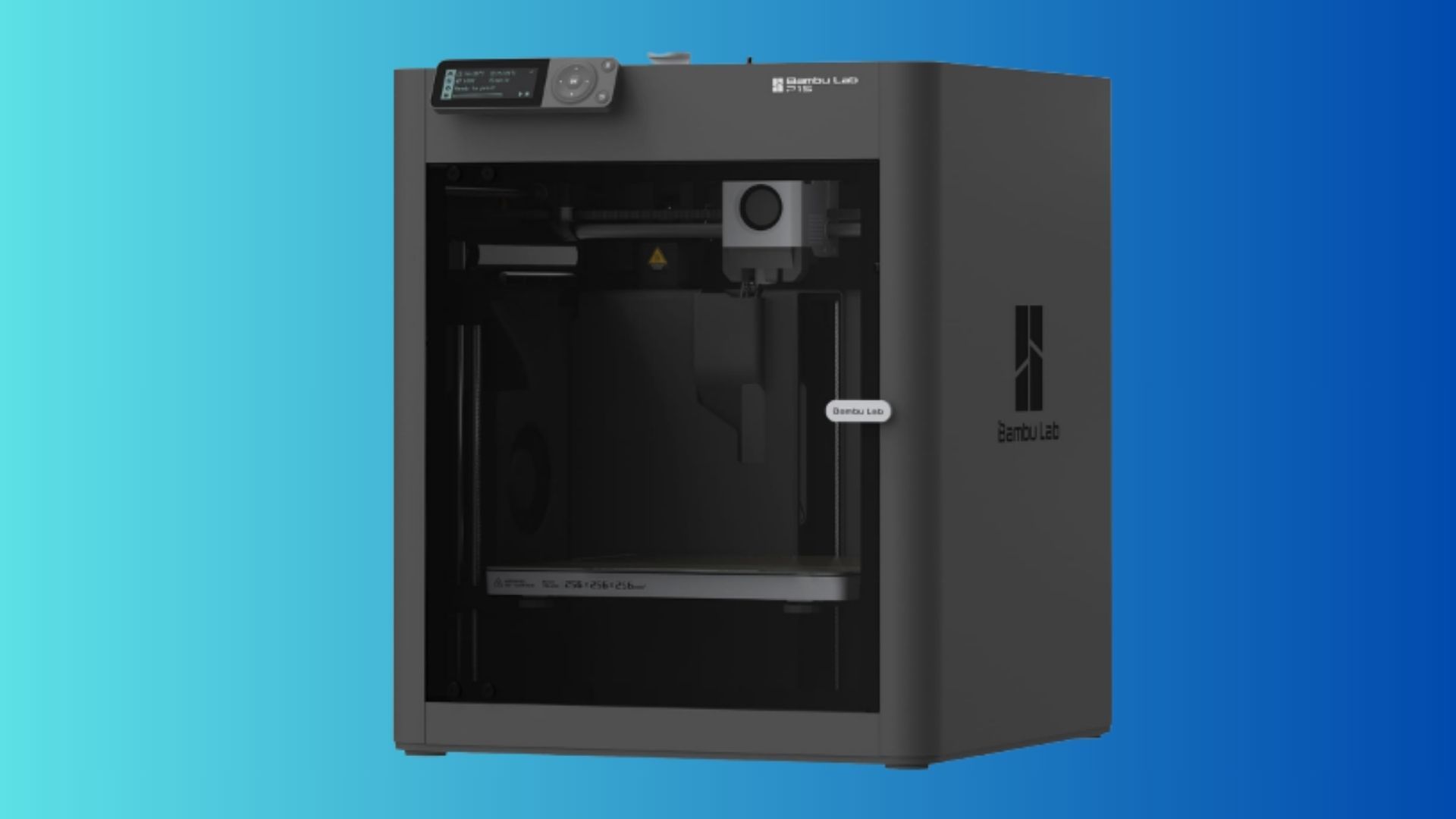
If you bought a Bambu Lab printer in the last year, you may have noticed something changed. Where older firmware let you point Orca Slicer or other third-party tools at the printer with minimal fuss, newer units default to a locked-down cloud-only setup. Bambu Studio and the Handy app work well, but they also tie your printer, your prints, and your data to Bambu's infrastructure.
That is not a problem for everyone. If you never wanted to leave the Bambu ecosystem, the lock-in is invisible. But if you prefer to run your own slicer, self-host monitoring, or integrate your printer into a home automation setup, the default configuration is an obstacle. The good news is that Bambu Lab leaves a door open: LAN-only mode combined with developer mode restores most of the flexibility the company quietly narrowed.
Step 1: Enable LAN-only mode
On the printer's touchscreen, go into Settings and find the network options. Switch the connection mode from cloud to LAN-only. This severs the link to Bambu's servers and lets the printer communicate directly with devices on your local network. Once LAN-only is active, your P2S, X1C, or A1 shows up as a discoverable device on the subnet, and Orca Slicer can connect to it just like it did a few years ago.
The trade-off is immediate: remote printing through the Bambu app stops working, and cloud-based camera feeds go dark. If you never used those features, you will not notice. If you did, you will need a replacement in the next step.
Step 2: Turn on developer mode
Developer mode appears in the settings only after LAN-only mode is active. Enabling it requires confirming a warning that third-party tools with the access code will have full control of the printer. That warning is worth reading carefully: any tool you pair with the access code can start, stop, and reconfigure prints. Use it only with software you trust.
With developer mode enabled, Orca Slicer connects without workarounds, and more advanced integrations become possible.
Step 3: Replace the features you lost
Remote monitoring and notifications are the two things most users miss after leaving the Bambu cloud. A self-hosted tool called Bambuddy fills both gaps. It runs in Docker or as a native process, connects to the printer over the local network, and provides a web interface for live camera feeds, print status, and print history.
Bambuddy also handles notifications. You can route alerts for print completion, errors, filament changes, or pauses to Discord, Telegram, email, or Home Assistant. The notification routing is more granular than what Bambu's native system offers. If you want a Discord message when a print fails and a Telegram ping when it finishes, that configuration is straightforward.
Home Assistant users can take it further. By piping Bambuddy alerts into Home Assistant automations, you can make a smart light turn red when a print stalls, flash green on success, or trigger any other reaction the platform supports. Some users run both Bambuddy and the official Bambu Home Assistant integration in parallel for redundancy.
The honest version
The setup above works. I tested it on a P2S with Orca Slicer and Bambuddy behind a reverse proxy. The printer felt like mine again in about an hour. That said, I eventually went back to Bambu Studio and the official cloud. The self-hosted stack was not failing; I simply stopped using the extra features it opened. Knowing how to escape is useful even if you do not stay escaped.
If Bambu Lab continues tightening the default configuration, the LAN-only plus developer mode path is the escape hatch most users will need. Bambuddy and Home Assistant are the best-supported replacements for the monitoring and notification features you give up. The hardware is still solid. The software freedom just requires a few extra taps to recover.

Comments (0)
No comments yet. Be the first!
Leave a Comment